
API keys
An API key lets an AI agent or a program prepare token launches for you and read how they are going. A key cannot sign, spend or move tokens: only a wallet creates the token. You manage your key on the API page of the app, at launch.gama.win/api.
For a first launch with an agent, start with Launch with an AI agent.
Create a key
Connect the wallet that will manage the key. It does not have to be the wallet that launches tokens.
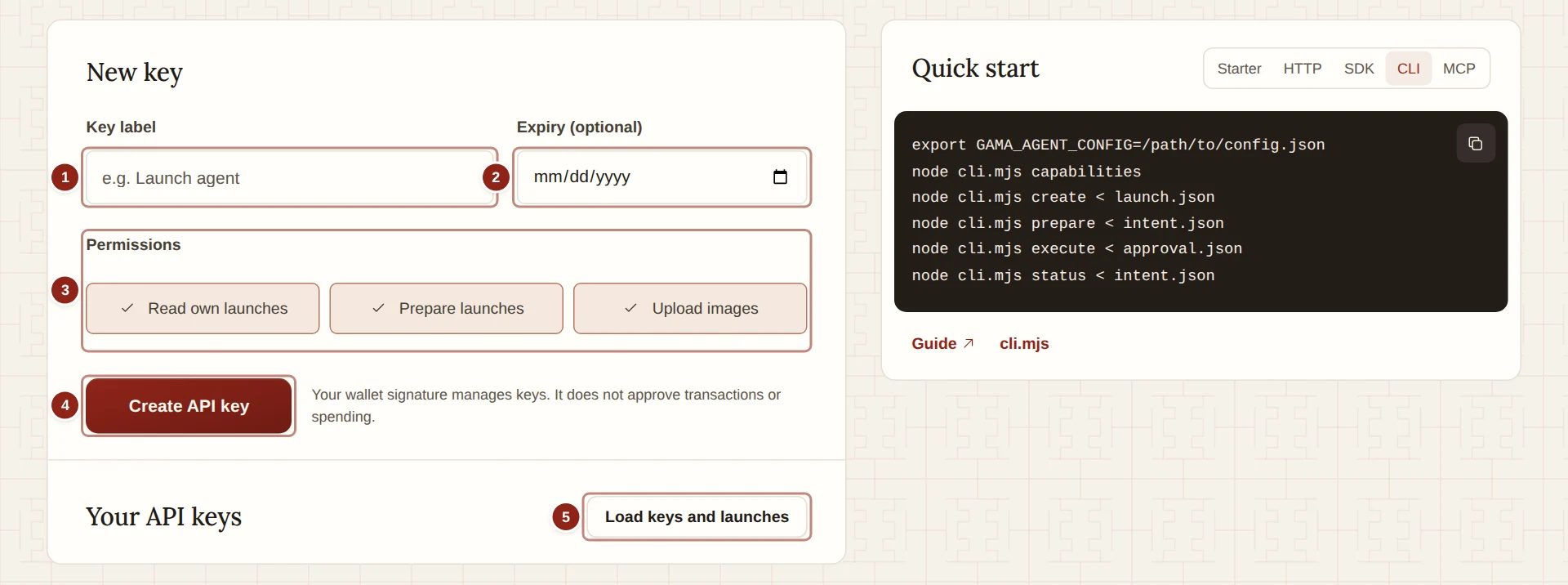
- Key label: a name for the key, up to 64 characters, such as "Launch agent".
- Expiry (optional): a date up to a year ahead. The key stops working at the end of that day (UTC). Leave it empty for a key that works until you revoke it.
- Permissions: what the key may do. All three are on by default.
- Create API key: asks your wallet for a signature and shows the key once.
- Load keys and launches: shows your key and your launches after a signature.
Every action on this page asks your wallet to sign a message that names the action. It is not a transaction: it costs no gas and approves no spending.
After Create API key, New API key shows the key once, with "Save this key now. It will not be shown again." Click Copy key, store it in your agent's secret settings, then click I saved it.
WARNING
Anyone who has the key can use your allowance. Keep it in a secret manager or a private configuration file. Never paste it into a conversation, a prompt or a web address.
A key works with the release of GAMA's contracts it was created on. Updates to the website and its services keep it working. After a new contract release, create a new key on the API page; keys and launches from the earlier release do not move to it.
Permissions
- Read own launches: see the launches prepared with your keys and their status.
- Prepare launches: start a launch, prepare it for a wallet and report its transaction.
- Upload images: upload a token image.
An agent that launches for you needs the first two. Upload images is only for uploading a token image. There is no permission to spend or to sign.
Limits
Limits per wallet on the page shows the current values:
| Limit | Value |
|---|---|
| Active keys | 1 |
| Active launches | 1 |
| Launch preparations | 6 per minute |
| Image uploads | 10 per hour |
A launch counts as active until it is Confirmed or Failed. Limits for the whole service also apply, so at a busy moment your agent may have to wait.
After Load keys and launches, the same card shows what your wallet has used of each allowance at that moment, and when each one resets. Click Refresh for new figures.
See your key and launches
Click Load keys and launches and sign. Your API keys shows the key's label and identifier, its Permissions, Created, Last used and Expires. A key that no longer works is marked Revoked or Expired. The key itself is never shown again.
Your launches lists the launches prepared with your keys:
- Draft: started, not yet prepared.
- Prepared: a launch plan exists for a wallet to review. It may still need funds or an approval before it can be signed.
- Pending: a transaction was reported, or its outcome is not known yet.
- Confirmed: the launch transaction is confirmed and the token exists.
- Failed: closed without creating a token, for example a launch that was never sent.
A confirmed or failed launch leaves the list 30 days after its last update. An unfinished launch stays until it is finished. To finish or close one, see Continue an unfinished launch.
Replace a key
Click Replace key and sign. The old key stops working and a new one with the same label, permissions and expiry is shown once. Use it when a key is lost or may have been seen by someone else, then give your agent the new key.
Replacing a key does not end an unfinished launch. The new key continues it.
Revoke a key
Click Revoke and sign. The key stops working. This cannot be undone.
Revoking a key does not cancel a transaction that a wallet has already signed.
With one active key per wallet, a new key with a different label, expiry or permissions needs the old one revoked first. Otherwise the page says "This wallet already has an active key. Replace or revoke it first."