
Launch with an AI agent
An AI agent can prepare a token launch on GAMA for you. You tell it the name, ticker and settings in a conversation. It prepares the same launch as the Create a token page, you check it, and your wallet signs it. This page takes you from nothing to a launch that is ready for your approval.
GAMA never receives your wallet's private key, and an agent can't spend from your wallet with an API key.
What you need
- An agent that can use tools. It has to be able to call a web service or run a program on your computer, and to keep a secret in its own settings. Coding agents and desktop agents usually can. A plain chat window with no tools can only help you choose the details.
- A wallet on GIWA Sepolia with test ETH for the creation fee of 0.00078 ETH and gas. See Connect a wallet and get test ETH.
- An API key, which you create in the next step. It is free: no email, deposit or gas.
WARNING
An agent can only send the launch if it is connected to a wallet. If yours is not, it can still prepare and explain the launch, and you create the token yourself on Create a token. That page starts a new launch from an empty form; it does not continue the one your agent prepared. See Your first launch.
Create your API key
- Open launch.gama.win/api. The link API is at the bottom of every page of the app.
- Click Connect wallet. This wallet manages your key. It does not have to be the wallet that launches the token.
- Under New key, type a Key label, for example "Launch agent". Leave the three Permissions switched on.
- Click Create API key and confirm the message in your wallet. It is a signature, not a transaction: it costs no gas and approves no spending.
- New API key shows the key once. Click Copy key, save it as the next section describes, then click I saved it.
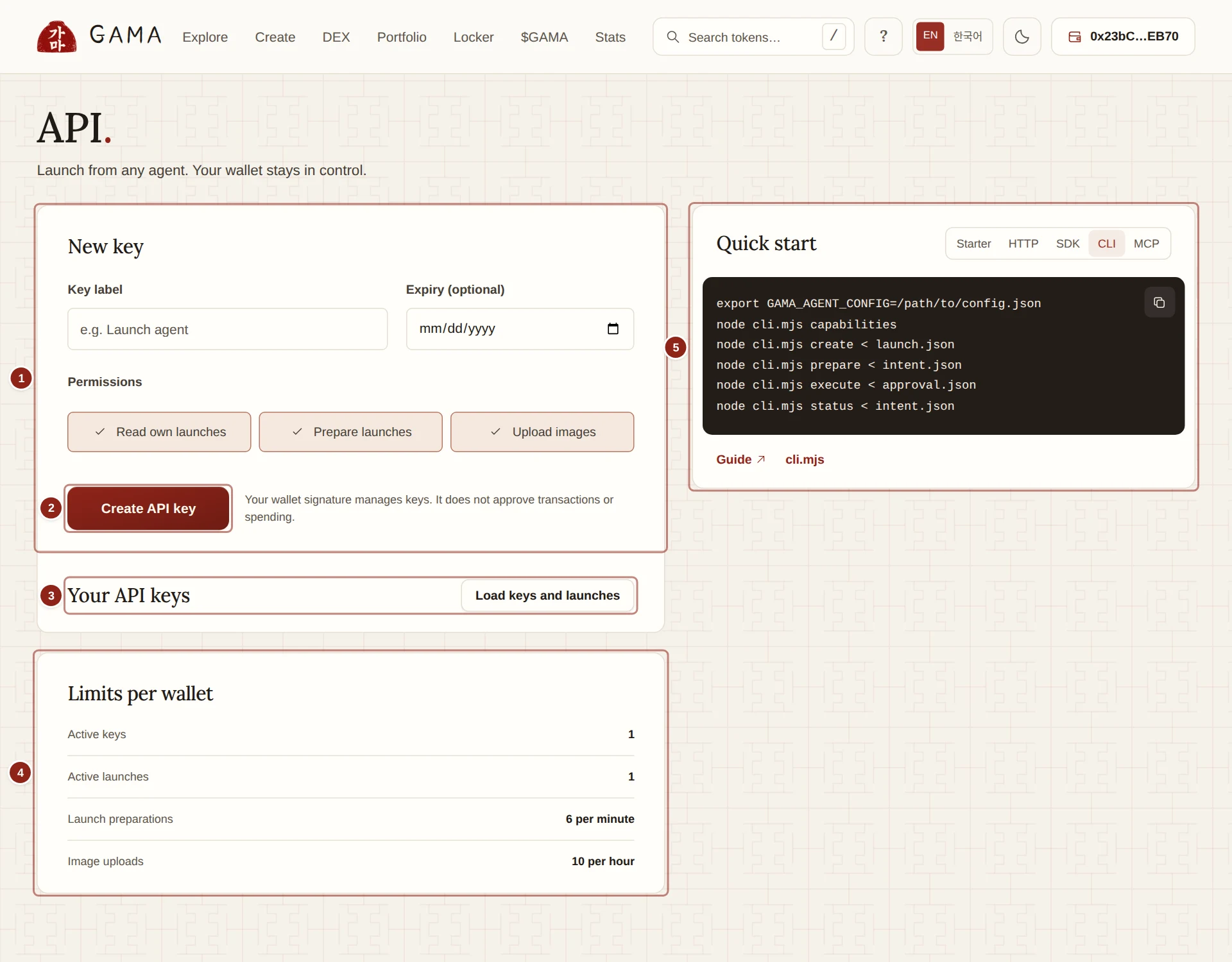
- New key: the label, an optional expiry date and the permissions.
- Create API key: asks your wallet for a signature and shows the key once.
- Your API keys: your key and your launches, after Load keys and launches.
- Limits per wallet: one active key and one unfinished launch at a time.
- Quick start: the technical samples and files an agent or a developer uses.
Each wallet has one active key. API keys explains how to replace or revoke it.
Give the key to your agent
Put the key where your agent keeps secrets: its secret manager, its credential settings or a private configuration file. The agent's own help says where that is.
WARNING
Never paste the key into the conversation, and never put it in a prompt, a web address or a shared file. If your agent has nowhere private to keep a key, don't use a key with it. If a key has been exposed, revoke it on the API page.
Paste the starter message
Copy this message and paste it into your agent as the first thing you say. The same message is on the API page, under Quick start › Starter.
Help me launch a token on GAMA. Read https://launch.gama.win/agents/README.md and check the live network and available tools first. Guide me through https://launch.gama.win/api and keep API keys in secure settings, never in this chat.
Ask only for the token details and wallet choices you need. Start with no opening buy or lock unless I ask for one. Show me the token details, mode, fees, recipients and estimated total cost, then wait for my approval before any wallet action.
Reuse my unfinished launch if there is one. If something fails, recover that launch instead of creating another. Never ask for my seed phrase or private key. If you cannot use the required tools or wallet, explain the simplest supported next step.
Your agent should answer by saying that GAMA runs on a testnet, what it can and can't do with the tools it has, and which details it needs from you. It needs a name and a ticker. An image, a description and links are optional.
Unless you ask for something else, the launch is paired with ETH, in Standard mode, with no Creator tax, no initial buy and no lock. Standard mode's 1% trading fee applies to every trade. Create a launch explains each choice.
Check the launch before you approve
Preparing a launch sends nothing and costs nothing. Before any wallet action, your agent shows you what it prepared. Check each line:
- Token name, Ticker and image.
- The launch mode and the fees on every trade.
- The paired asset.
- The wallet that launches the token, and the Fee wallet that receives creator earnings.
- The creation fee of 0.00078 ETH, any initial buy and any lock.
- The estimated gas, which is separate from the creation fee.
WARNING
You can't change the fees, paired asset or token details after launch. A launch cannot be edited or deleted.
Approve in your wallet
The token is created only when the launch wallet signs the launch transaction. An agent connected to a wallet asks that wallet, and you approve there. The transaction carries the creation fee and any ETH initial buy.
If the paired asset is not ETH and you asked for an initial buy, the wallet first approves that exact amount, as on Create a token.
When the transaction is confirmed, your agent gives you the token's address and its page on GAMA.
If something goes wrong
Each wallet has one unfinished launch at a time. Your agent continues that launch; it does not start another.
- A step failed or timed out. Ask your agent to check the same launch and carry on from there.
- A transaction was sent and you are not sure it went through. Ask your agent to check the same launch. Don't ask it to start again, and don't create the token on Create a token until you know nothing was sent: a second launch would create a second token.
- You want to see your launches. On the API page, click Load keys and launches and sign. Your launches lists each one as Draft, Prepared, Pending, Confirmed or Failed.
- You lost the key. It can't be shown again. Click Replace key on the API page and give your agent the new one.
Continue an unfinished launch goes through each of these in detail.
Technical reference
These files are for agents and developers. Your agent reads them itself.
- Guide: the whole flow, the limits and how recovery works.
- OpenAPI description: every request and reply of the web service.
- SDK and command-line tool, which also runs as a local MCP connector.