
Create a launch
Anyone with a wallet on GIWA Sepolia can launch a token on GAMA. You fill in one form, check the preview beside it and confirm one transaction. There is no sign-up, and nobody has to approve your launch. This page goes through the form field by field. GAMA itself was launched the same way: its launch transaction created the token and made its initial buy in one step.
Before you start, connect a wallet that holds some test ETH. You need at least the creation fee of 0.00078 test ETH, plus gas, plus any initial buy.
Open the form
Select Create in the header. The page is called Create a token: the form is on the left and the Token preview on the right. On a phone the preview sits below the form, and Review launch takes you to it.
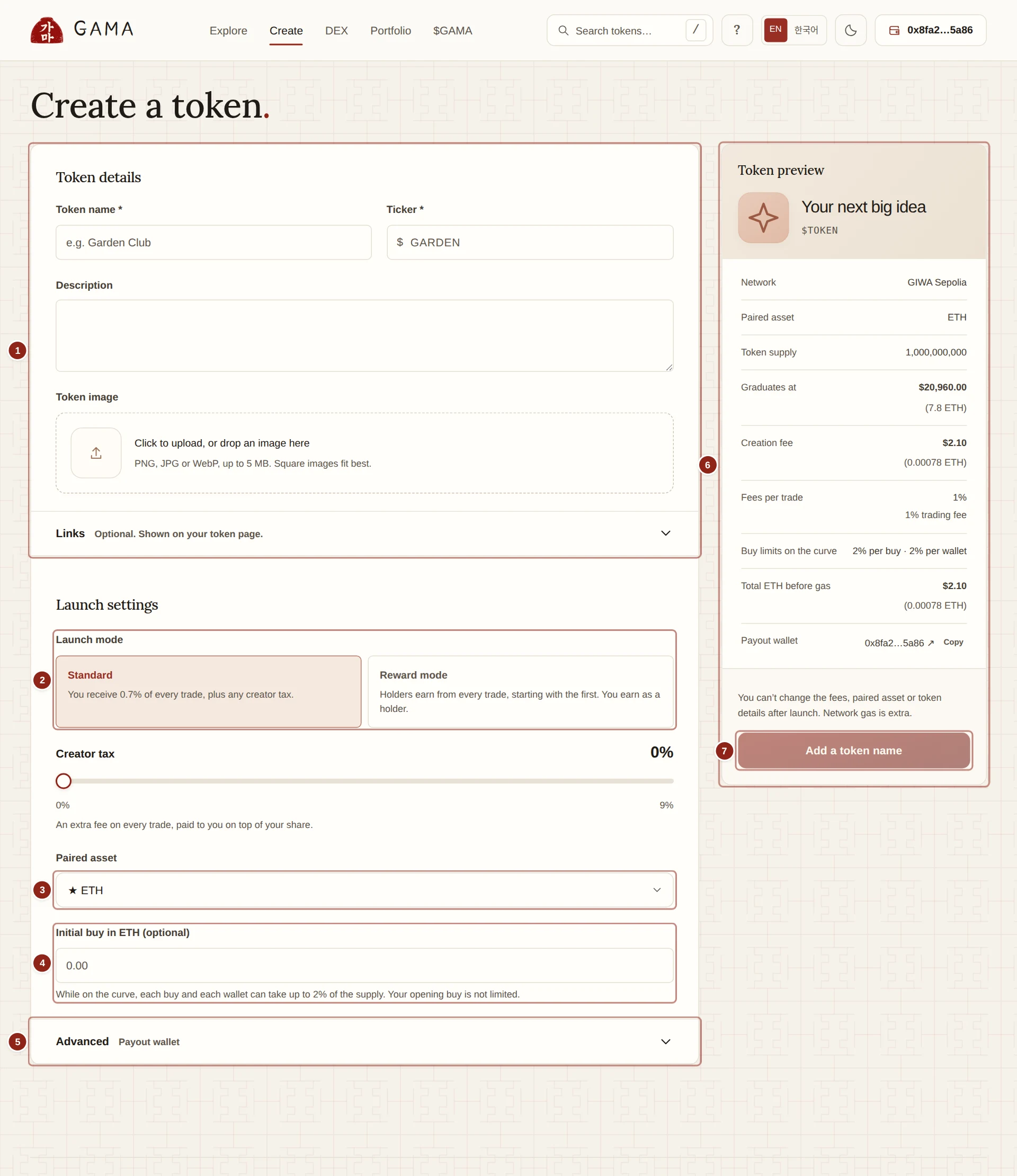
- Token details: name, ticker, description, image and links.
- Launch mode: standard or reward mode, with its fee slider.
- Paired asset: what the token is priced in.
- Initial buy: an optional first purchase in the same transaction.
- Advanced: the payout wallet for your creator fees.
- Token preview: the exact terms the launch will get.
- Launch token: creates the token once everything is ready.
1. Token details
- Token name (required): up to 64 bytes. Most Latin letters take one byte each and Korean characters take three, so a Korean name fits about 21 characters. Near the limit, the form counts the bytes for you.
- Ticker (required): up to 16 bytes. The app shows it with a $ in front, for example $GARDEN.
- Description: optional, up to 2,048 bytes.
- Token image: a PNG, JPG or WebP file of up to 5 MB. Square images fit best. The image uploads as soon as you choose it, and Launch token waits until the upload has finished.
- Links: optional links to X, Telegram, Website, Discord and Farcaster, shown on your token page. In the X, Telegram and Farcaster fields you can type a handle such as @garden and the form turns it into a full link. Every link must start with
https://and point to that platform's own site.
2. Launch mode
Choose Standard or Reward mode. A standard launch pays you a share of every trade, and you can add a Creator tax of 0% to 9%. A reward-mode launch pays a Holder fee of 1% to 4% to the token's holders instead, and pays you nothing as the creator. In the form both sliders move in steps of 0.5%. See Standard and reward modes.
3. Paired asset
The Paired asset is what your token is priced in, on its curve and later in its pool. ETH is the default and comes first. GAMA is starred. Other tokens launched on GAMA appear once they have graduated. See Paired assets.
4. Initial buy
Initial buy in ETH (optional) lets you buy your own token in the same transaction that creates it, before anyone else can trade. The form shows how many tokens you get. See Initial buy.
5. Advanced: payout wallet
Open Advanced to set a Payout wallet: the address that receives your creator fees. Leave it empty to use your connected wallet. GAMA's own fee contract cannot be a payout wallet. You can redirect the fees to another wallet later. See Creator earnings.
6. Token preview
The preview shows the exact terms your launch will be created with. It is read from the contracts as you type and refreshed every 12 seconds.
| Row | What it shows |
|---|---|
| Network | GIWA Sepolia |
| Paired asset | The asset you chose |
| Token supply | 1,000,000,000 |
| Graduates at | How much of the paired asset the curve must raise: 7.8 ETH for an ETH launch |
| Creation fee | 0.00078 ETH, always paid in ETH |
| Fees per trade | For example "1% trading fee", "1% trading fee + 2% creator tax", or "1% to GAMA, 1% to holders, from the first trade" |
| Buy limits on the curve | 2% per buy · 2% per wallet |
| Total ETH before gas | The creation fee plus an initial buy paid in ETH |
| Payout wallet | Your payout wallet, or Connected wallet |
A row for the Anti-snipe tax appears only when that tax is switched on for new launches. It is off on the testnet. See Anti-snipe tax.
7. Launch token
The button says what it is waiting for, such as Add a token name, Waiting for the image upload or Not enough balance. When it reads Launch token, select it:
- If your paired asset is not ETH and you set an initial buy, your wallet first asks you to let GAMA's launch contract spend exactly that amount. See Token approvals.
- The app finds an address ending in 100 for your token. This runs in your browser and takes a few seconds.
- Your wallet asks you to confirm the launch. You pay the creation fee, any initial buy in ETH, and gas.
- Once the transaction confirms, Open your token takes you to your new token page.
If the terms change between the preview and your confirmation, for example because the default fees changed or the paired asset's price moved, the launch is refused instead of being created on terms you did not see. The app says "Launch terms changed. Review the updated preview and retry."
WARNING
You can't change the fees, paired asset or token details after launch. Check the preview before you confirm. This cannot be undone.
What every launch gets
- A fixed supply. 1,000,000,000 tokens with 18 decimals, all created at launch and held by the bonding curve. No more can ever be created.
- The same split. The curve sells 780,000,000 tokens (78%). The other 220,000,000 (22%) go into the trading pool at graduation, with everything the curve raised.
- An address ending in 100. The contracts refuse any other address, so every GAMA launch ends in 100. A token whose address ends otherwise was not launched on GAMA.
- A plain token. It has no owner, no transfer tax, no blocklist, no pause and no maximum wallet. The buy limits apply only to purchases on the curve.
- Burns that stay visible. Burning a token sends it to the dead address, where nobody can move it. The total supply does not change; GAMA's pages count those tokens as burned and leave them out of the market cap.
When launches are paused
GAMA's admin can pause the creation of new tokens. The form then shows "New launches are paused." Existing tokens keep trading, graduating and paying out as usual.